Wallet Features
xRocket is a beginner-friendly wallet for secure low-fee use of crypto in multiple chains, including The Open Network (TON), Bitcoin (BTC), Ethereum (ERC20), Solana (SOL), BNB Smart Chain (BEP20), and TRON (TRC20).
In this article:
- Basic Navigation
- Balances and Filters
- Deposits and Withdrawals
- Actions History
- Payment Tools
- Account Recovery
Basic Navigation
Our product started with the Telegram bot, designed with simple, self-explanatory menus that made managing digital assets accessible right within Telegram. This bot remains our flagship product offering the most comprehensive set of features, complemented by the growing capabilities of our newer platforms.
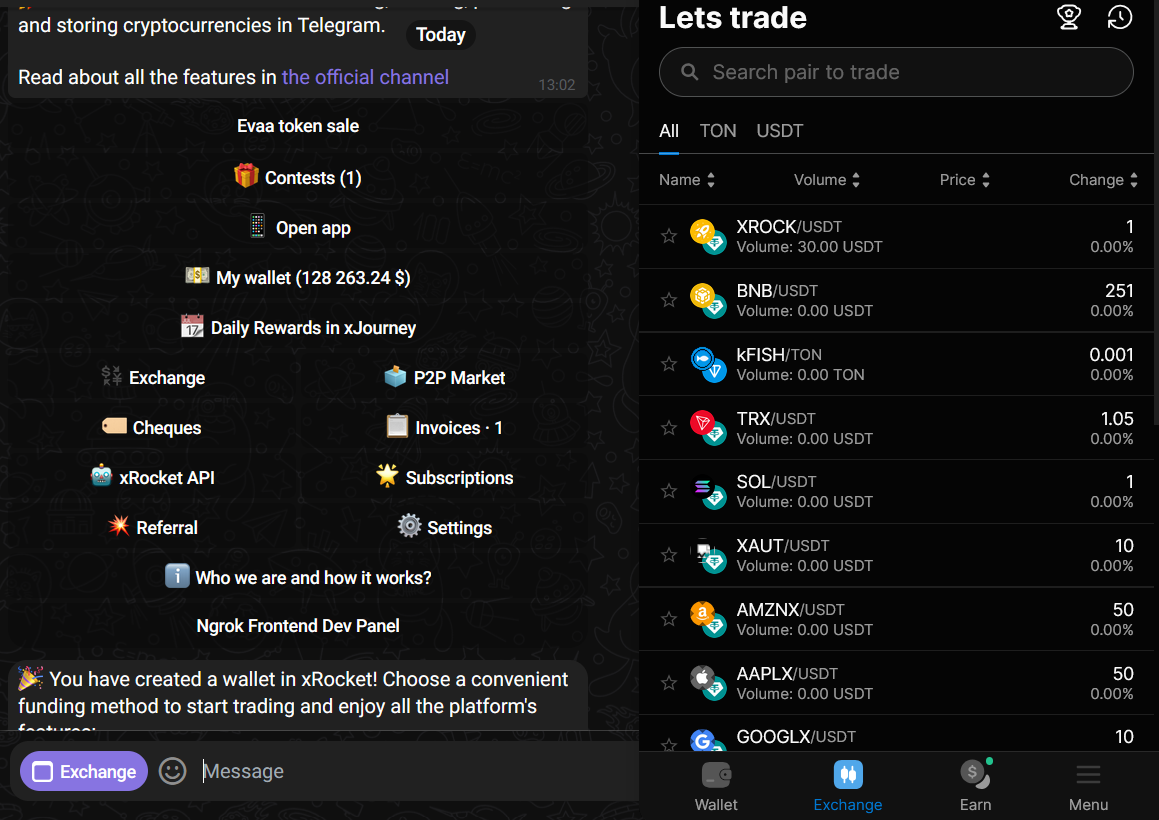
As we've evolved, we introduced the Telegram Mini App and a separate Web App version to enhance the user experience and offer more advanced features. This expansion means that some of our newest and more complex functionalities are available in the Mini App interface. Our standalone Web App version mirrors the Mini App experience but currently has a more limited feature set.
For an optimal experience, certain xRocket features may seamlessly transition you between the bot and the richer Mini App interfaces.
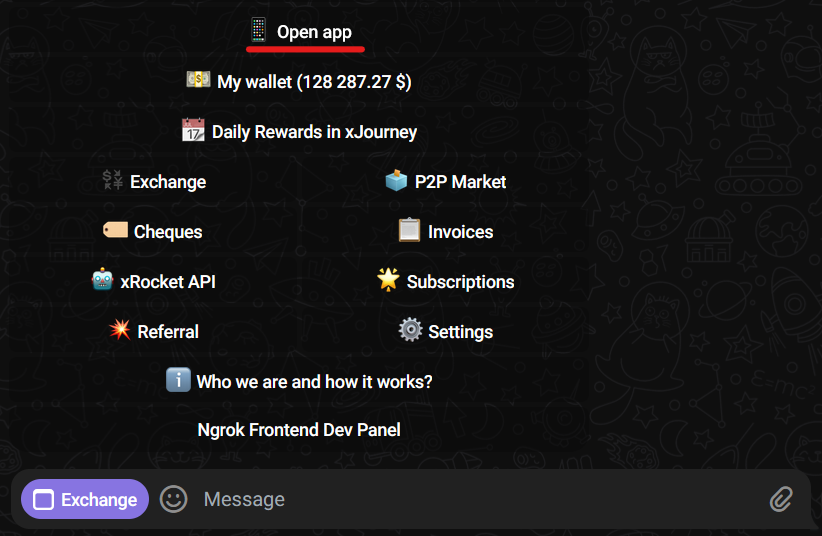
- To manually switch from the bot to mini app, in the bot main menu tap Open app. The mini app window opens in the same Telegram chat tab. You can use the bot and mini app simultaneously or close either one at any time and continue using the other one.
Balances and Filters
Our wallet is designed for intuitive asset management within our seamlessly integrated environments.
In the bot and mini app, you can:
-
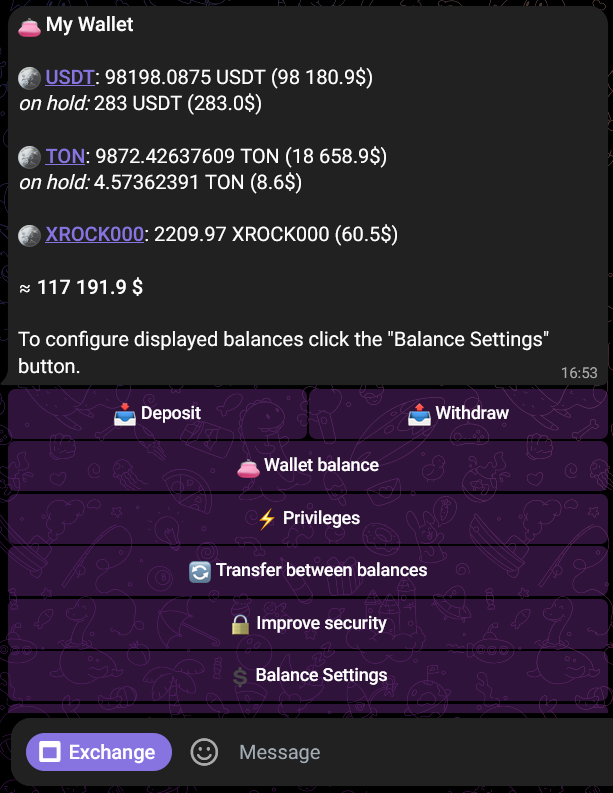
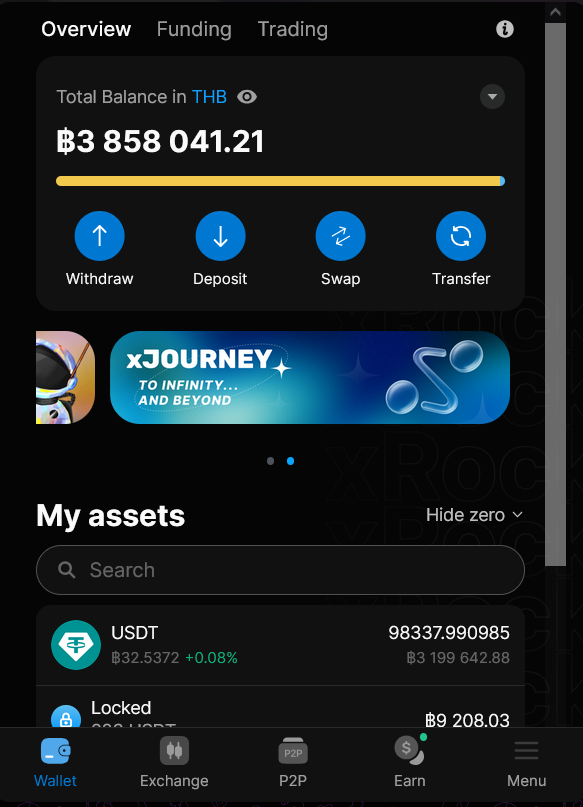
View individual balances of crypto that you hold. On My Wallet page in bot and Wallet tab in the Mini App.
-
Filter the view of individual balances to show all assets, hide zero balances, or hide less than $1 balances.

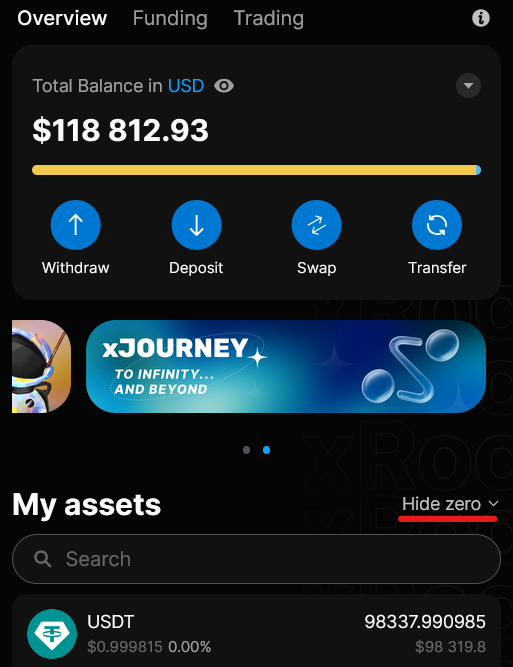
Set this filter in the Bot main menu > ⚙Settings > Balance Settings or in the Mini App menu accessed by tapping the filter next to the displayed balance numbers.
-
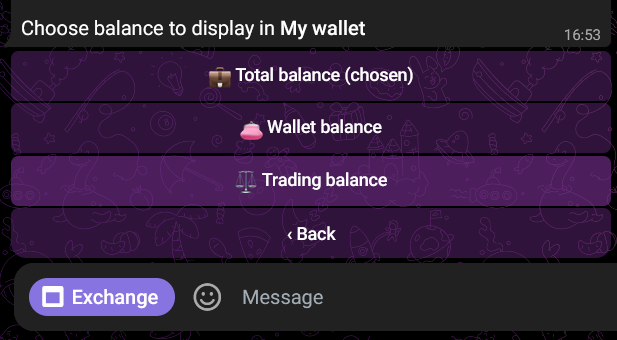
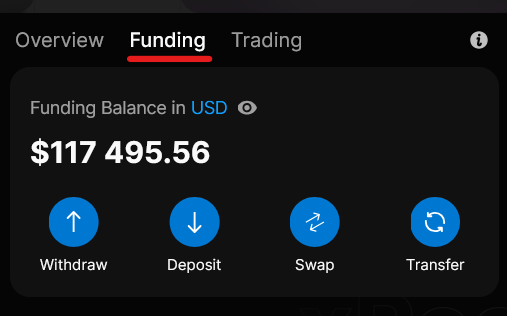
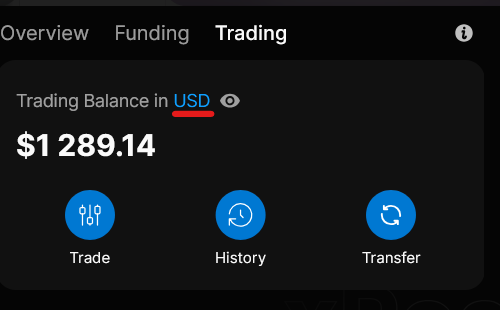
Switch between your Funding, Trading or Total (aggregated) Balance calculated in your preferred default currency.
-
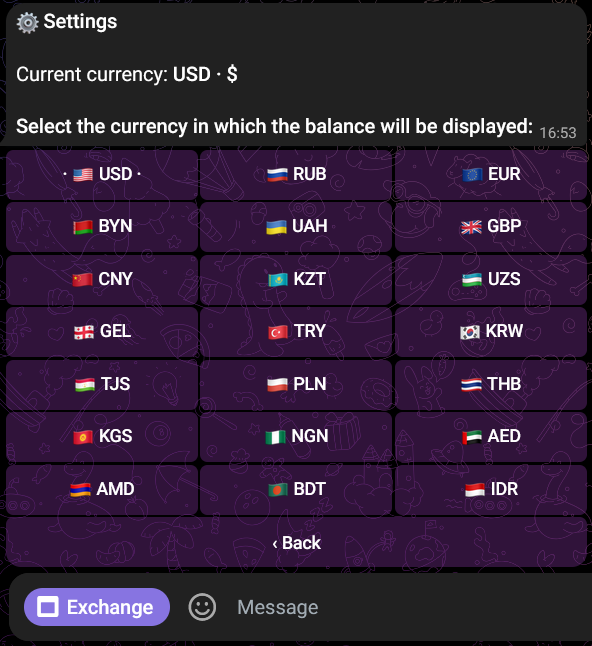
Set your default currency in the Bot main menu > ⚙Settings > Bot currency or in the Mini App menu by tapping the currency name next to displayed balance.
Funding vs Trading Balance
Every xRocket wallet has two separate balances. Transfers between them are instant and free.
Every xRocket wallet has Funding and Trading balances. The Total Balance is the aggregated value of the two.
- Funding Balance is used for deposits, withdrawals, and internal transfers between users.
- Trading Balance is allocated for use in the exchange trading. It can be used to place orders.
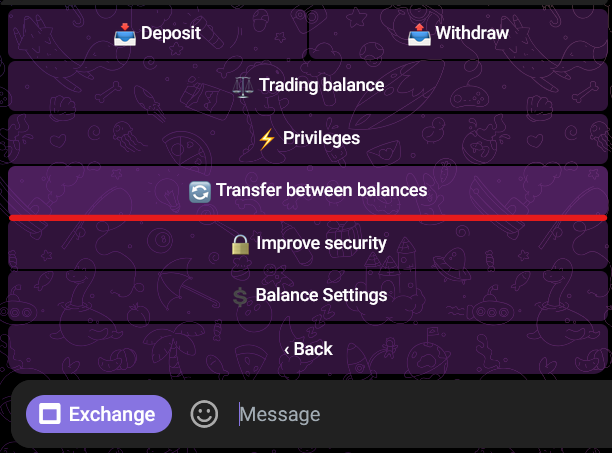
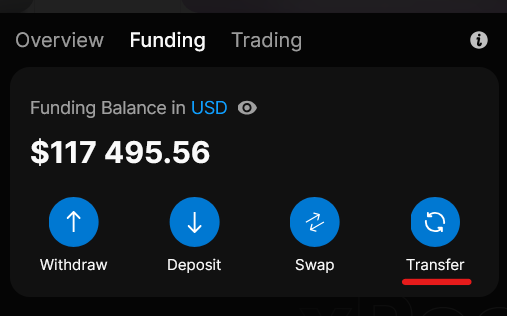
You can instantly transfer assets between your Funding and Trading balances at any time.
Managing Locked Balance
Locked funds cannot be withdrawn or transferred until the related operation is completed or canceled. Review the table below to understand how to unlock them.
Sometimes a portion of your funds in the wallet may be locked. This means they are temporarily reserved for one of the active operations. You can review your locked assets on My Wallet page in the bot or on the Wallet tab in Mini App.
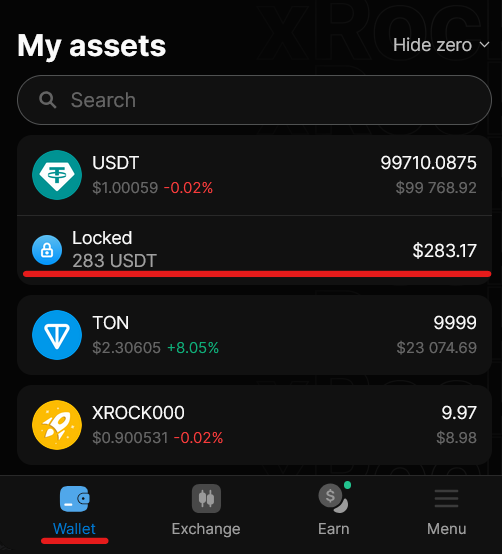
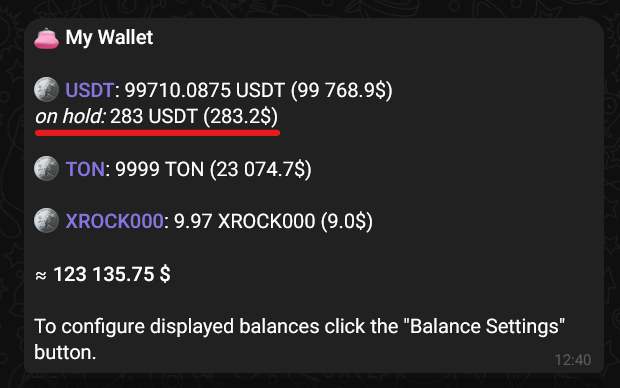
Your funds may be temporarily locked for the following reasons and will be unlocked automatically once the related action is either completed or canceled.
| Reason | How to unlock? |
|---|---|
| A cheque you created | The coins will be locked until the cheque is activated or until you delete the created cheque. |
| Published Advertisement on P2P Market | Take down the advertisement to unlock your assets. |
| Open Deal on P2P Market | Complete or cancel the deal. Pay attention to the status and circumstances of the deal. |
| Created Order on the Exchange | If you cannot wait for the order to execute, cancel it. |
| A withdrawal that has not been fully confirmed in the blockchain | It is impossible to manually cancel a created withdrawal. The coins will be deducted from your balance after the withdrawal is confirmed on the network. In case of errors when confirming the transaction, the withdrawal will be automatically cancelled, and the coins will be unlocked. |
Deposits and Withdrawals
xRocket wallet provides quick, low-fee multichain deposits and withdrawals.
📄️ ⏬ Deposit Crypto
Receive crypto from all the supported networks.
📄️ ⏫ Withdraw Crypto
Send crypto to your contacts or wallets of supported networks.
Actions History
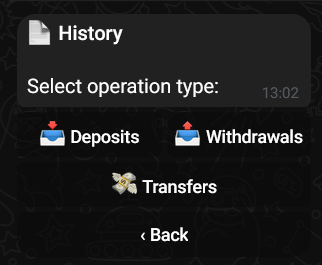
You can review the history of Deposits sent to your wallet, Withdrawals sent from your wallet, and transfers - the records of transactions via personal cheques. To see these records:
- Navigate to Bot main menu > ⚙Settings > History of your actions screen and tap Deposits, Withdrawals, or Transfers.
Payment Tools
xRocket develops tools to integrate crypto payments in various services and bots. You can:
- Create Invoices to be paid by one or multiple users via xRocket or to a blockchain address.
- Setup Paid Subscriptions to your Telegram channels, so new users need to pay you via our bot to get subscribed.
- Create Cheques to instantly transfer crypto from your wallet to a single or multiple Telegram users matching predefined required parameters, like being subscribed to channels etc.
Account Recovery
xRocket is a custodial wallet tied to your Telegram account. If your Telegram account is blocked or deleted and you have not set up a recovery method, your xRocket wallet and all assets in it may be permanently lost.
xRocket wallet enables secure and intuitive asset management, however, it is important to understand how it's linked to your Telegram account. As a custodial wallet, xRocket is tied directly to your Telegram account and does not have a seed phrase for recovery. While your data is securely stored on our servers, losing access to your Telegram account (e.g., if it's blocked or deleted) means you could lose your xRocket wallet permanently.
To protect yourself, we highly recommend setting up a recovery method. You can do this by linking your xRocket account to a non-custodial TON wallet (one with a seed phrase that you control).
Set up account recovery as soon as possible, even if you only hold a small balance. It takes less than a minute and can save your assets.
To set up account recovery:
- Set up a non-custodial TON wallet that is enabled with TON Connect.
- In the xRocket bot's main menu, navigate to Bot main menu > ⚙Settings > Connect wallet.
- Follow the suggested steps to connect your TON wallet to xRocket.
- If your Telegram account gets blocked or deleted, xRocket support will be able to use this link to verify the ownership of your account and help recover your assets.