Exchange Trading
xRocket provides users with various tools to trade and exchange crypto, including spot trading on our centralized exchange. You can access spot markets with real-time pricing and low fees to execute buy/sell orders directly in the app. Our exchange works with limit and market orders.
-
A market order is an instruction to buy or sell an asset as soon as possible at the best market price. This type of order guarantees its execution, but does not guarantee the price at which the order will be executed. Market orders are used when speed of execution is more important than price.
-
A limit order is an order to buy or sell at a given or more favorable price. A limit order excludes the possibility of execution at a less favorable price than the limit price, but its execution is not guaranteed.
Cryptocurrency trading involves significant financial risk. Prices can be highly volatile, and you may lose part or all of your invested funds. Only trade with amounts you can afford to lose.
Market orders execute immediately at the best available price, which may differ from the displayed price during periods of high volatility or low liquidity.
Use limit orders when you want precise control over the execution price. They protect you from unexpected price swings.
Exchange trading is subject to fees and limits that vary depending on the assets being traded. See How to check current fees and limits? for more information.
Order lifecycle
When you place an order, its journey begins. The corresponding asset amount is locked and remains in the locked state until the order is either filled or canceled. Read more about locked balance.
While an order is open, the corresponding funds are locked and cannot be used for other transactions. Cancel the order to release the locked amount.
Order statuses
An order progresses through several statuses during its lifecycle:
- New: The order has been successfully placed but has not yet been matched.
- Partially Filled: A portion of the order has been executed, but some remains open.
- Filled: The order has been completely executed.
- Canceled: The order was canceled by the user before being fully filled.
Partial order fills
An order can be partially filled, for example, when individual users buy or sell small portions of a larger order.
- Partial Fill Notification: If an order is partially filled, its status changes to "Partially filled," and you receive a notification as each portion is filled.
- Asset Transfer: The asset amount for the filled portion is immediately transferred to your balance.
- Remaining Amount: The remaining, unfilled portion stays locked in the open order.
- Cancellation: If you cancel a partially filled order, the remaining locked amount is returned to you.
Trading in bot/mini app
xRocket provides a full-fledged interface for trading crypto without leaving Telegram.
How to trade?
- Tap Exchange in the main menu of the bot to access the list of trading pairs.
- If you are using mini/web app, switch to the Exchange tab at the bottom of the screen.
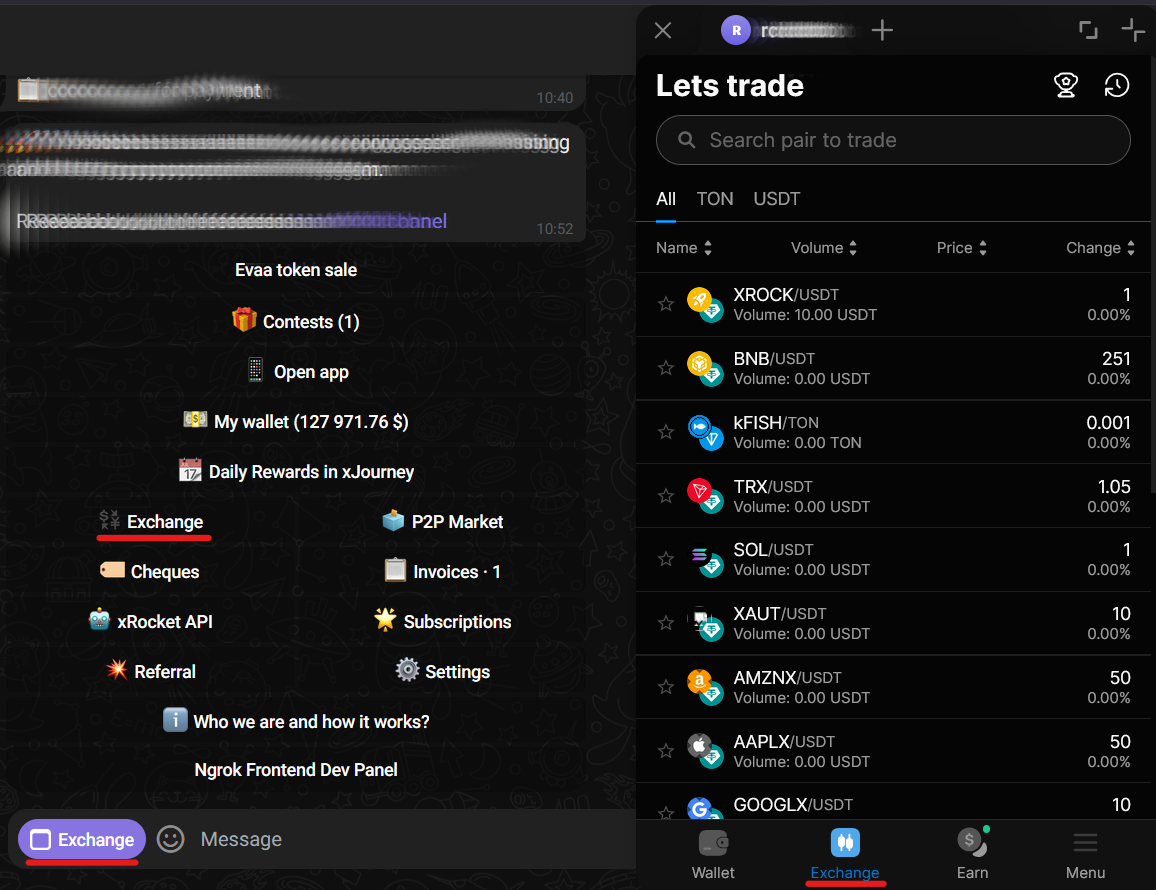
- Select a pair to trade.
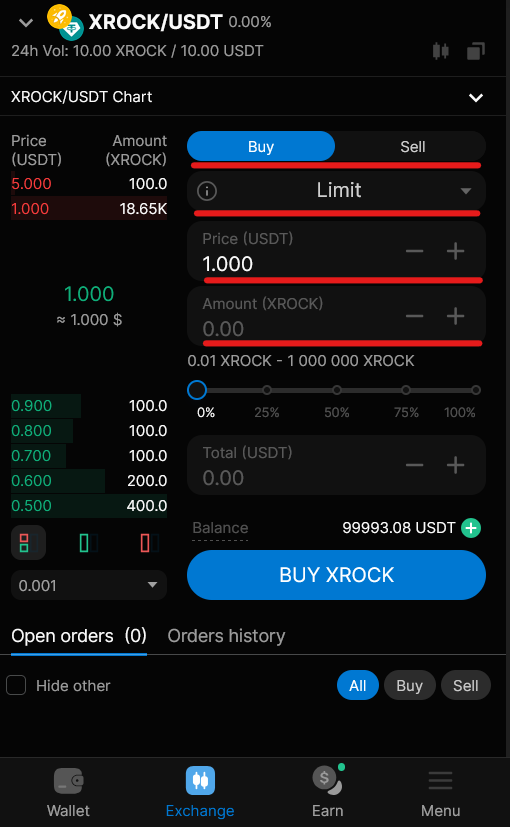
- Select direction (buy, sell) and type of order (limit, market).
- Specify price and amount of your order.
- Tap buy/sell, check the details of your order and confirm its creation.
- Wait for the order to be executed.
Reviewing order status and cancelling
You can cancel an order that is in a "New" or "Partially Filled" state. Once an order is "Filled," it cannot be canceled.
Filled orders are final and irreversible. Always double-check the price and amount before confirming your order.
You can monitor your open/partially filled orders on the Open orders tab. The tab is available at the bottom of the exchange interface and it provides a detailed view of each order's status and progress.
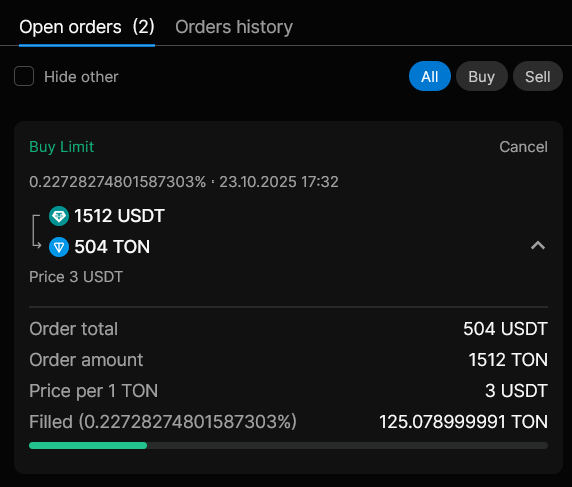
Every order entry displays key details, including:
- Trading pair: The assets being traded (e.g., TON-USDT).
- Order type: The type of order (e.g., Buy Limit).
- Order status: The completion status, showing if the order is partially filled and by what percentage.
- Date and Time: When the order was placed.
- Amount and Price: The total amount of the order and the price per unit.
To cancel an order, just locate it in the list and tap Cancel.